
Introduction: Why Do Youth Housing Support Applications and Error Submissions Keep Getting Blocked?
Amidst soaring housing costs every year, youth housing policies supported by the government and local authorities are like a oasis in a desert for homeless young people. A variety of benefits are available, ranging from representative youth monthly rent special support to subsidized key-money lease loans, and youth monthly rent support projects by local governments.
However, when you actually make up your mind to access an application portal (Bokjiro, Housing and Urban Fund, local government sites, etc.) and submit your documents, quite a few people face difficulties due to unexplained errors, system paralysis, or strict eligibility screening hurdles. Complaints such as “I clicked the submit button and it keeps loading infinitely,” “An error keeps occurring in the household member information consent,” or “I clearly entered everything, but I received a document rejection text message” are common sights easily found in youth communities and blogs.
Errors or simple mistakes occurring during the application process do not just end as a mere inconvenience. This is because it can lead to the worst-case scenario where you miss the application period or fail to resolve the issue within the supplementary period, entirely losing valuable housing support benefits.
Then why do errors occur so frequently during the youth housing support application process? Also, what are the ways to quickly respond without panicking when a problem actually strikes to protect your precious rights? In this posting, we will examine the frequent error types by application stage and their definitive solutions one by one.
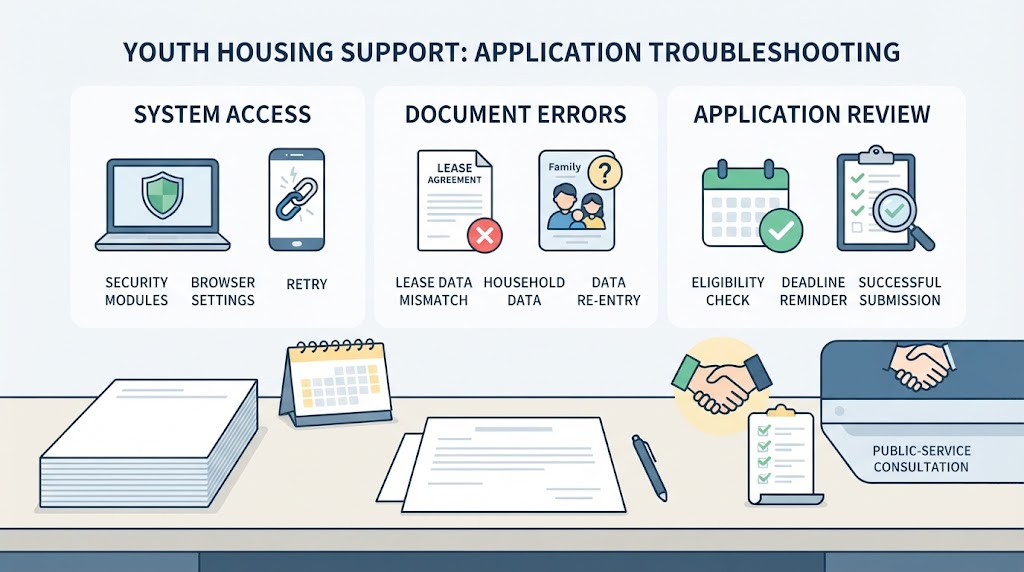
Body 1: TOP 3 Most Common Error Types by Application Stage
Government and local government youth housing support projects are mostly processed through online portals (Bokjiro, Housing and Urban Fund’s Fund e-Deundeun, local government proprietary sites, etc.). We have categorized the representative TOP 3 error types and their causes that countless youths commonly experience from system access to final submission.
Type 1 (System and Authentication Area): Joint Certificate Login Errors and Browser Compatibility Issues
Occurrence Situation: When accessing government portals such as Bokjiro or Fund e-Deundeun and attempting to log in with a Joint Certificate (formerly official certificate) or Financial Certificate, the certificate window loads infinitely or the notice “Security program installation is required” repeats.
Main Causes:
Conflict or non-installation of security modules (keyboard security, firewall, etc.) in the PC environment
Popup blocking and cookie/cache issues in web browsers such as Chrome, Edge, and Safari
Integration errors between the browser app and certificate app in a mobile environment (smartphone)
Solution Tips:
Disable popup and redirection blocking in browser settings, and use Internet Explorer mode or the latest standard browser version whenever possible.
If errors persist, it is effective to completely clear the browser’s internet usage history and cache or access via Incognito mode (private window) to try again.
Type 2 (Information Entry Area): Lease Agreement Information and Household Member Information Integration Errors
Occurrence Situation: When entering the lease deposit, monthly rent amount, contract period, address, etc. while filling out the application, an error occurs due to slight discrepancies with the details on the housing lease agreement, or household member information on the resident registration copy is not automatically retrieved.
Main Causes:
Discrepancy between the address on the building ledger and the actual contract address (dong/ho notation, etc.)
Typos occurring when entering fixed-date assignment status or lessor information
Household members who should be separated on the resident registration are grouped together, or household member information provision consent is omitted during the parent co-residence verification stage
Solution Tips:
Addresses must be entered accurately based on the building ledger and road-name address standards.
In case of household member information integration errors, you must check in advance whether each household member has completed ‘Consent to Provide Financial Information, etc.’ and ‘Household Member Advance Consent’ on Bokjiro, etc., to smoothly proceed to the next step.
Type 3 (Document Attachment Area): Capacity Exceeded and File Extension Not Supported Errors
Occurrence Situation: You uploaded a copy of the lease agreement, bank account copy, income verification documents, etc., but upload is blocked with warning texts such as “File format not supported” or “Attached file capacity exceeded.”
Main Causes:
Uploading high-resolution images (HEIC, JPG, etc.) captured with a smartphone camera or large-capacity PDF files as-is (some systems have strict per-file capacity limits)
System recognition errors caused by excessive inclusion of special characters (%, #, -, parentheses, etc.) or Korean in the file name
Solution Tips:
Before uploading files, check if they are recommended extensions by the system such as PDF, JPG, and PNG, and reduce (resize) smartphone photos through an image viewer program or free compression site before attaching.
If you change the file name simply to English and numbers (e.g., contract_2026.pdf) and then upload it, you can prevent errors in advance.

Body 2: Practical Troubleshooting Guide to Handle Errors Calmly Without Panic
When the application deadline is approaching and a system error occurs or the input window freezes, anyone is bound to break into a cold sweat. However, if you blindly close the window or repeatedly refresh out of panic, everything you were writing could be lost. Here is a step-by-step practical troubleshooting guide to handle such situations calmly.
Step 1: Accurately Distinguish Between System Errors vs. Your Own Input Mistakes
Symptom Check: First check whether an error message pops up in a popup window or the screen itself freezes (infinite loading).
Discernment Method: If the border of a specific input field turns red and a guide message appears, it is likely an ‘input mistake or omission’. On the other hand, if messages such as “Communication with the server is unstable” or “A temporary error has occurred” appear, it is a ‘government portal system server overload’.
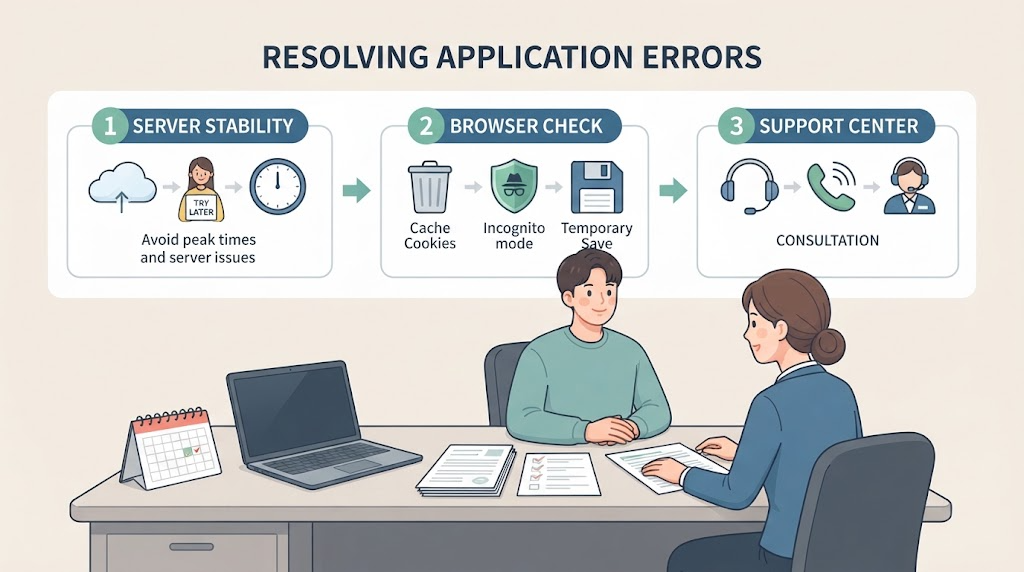
Handling Method: If it is a system server issue, rather than overusing page refreshes, it is better to try again after a while or avoid peak access times (right after 9 AM, lunch hour, etc.).
Step 2: Utilize Temporary Saving and Organize Browser Environment (Cache Deletion and Incognito Mode)
Habitualize Temporary Saving: When writing long applications, you must frequently click the ‘Temporary Save’ button in between to prevent data loss.
Delete Browser Cache and Cookies: Leftover data accumulated in the browser often causes script conflicts and triggers errors. Go to the browser settings menu and proceed with ‘Clear browsing data and cache’.
Utilize Incognito Mode: Opening an Incognito window (private mode) using the shortcut Ctrl + Shift + N in Chrome allows you to connect in a clean environment without interference from extensions or existing cookies, making it very effective for resolving authentication and login errors.
Step 3: Efficient Contact Tips for Customer Center and Jurisdiction Community Service Centers
Call Center Connection Tips: Bokjiro Call Center (129), Housing and Urban Fund Call Center, and local government departments experience exploding call volumes during the application season, making connection very difficult. It is faster to target afternoon hours rather than early morning hours or right after lunch, or to first utilize the ‘1:1 Inquiry’ or ‘Chatbot’ services within the site.
Preparations for Inquiries: Before making an inquiry call or visit, if you prepare in advance the name of the project you are applying for, a screenshot of the error screen, and the error code number, you can be guided to a much more accurate and prompt solution from the counselor.
Body 3: Core Checkpoints to Note When Re-submitting After Rejection and Errors
Even if you managed to push through errors and complete your application, it is still too early to relax. This is because it is frequent to receive a ‘supplementary request (rejection)’ text message from the local government or dedicated organization due to mismatches in entered information or insufficient attached documents. We have organized 3 core checkpoints that you must check to re-submit perfectly without panicking when you receive a rejection notice.
- Strict Observance of Supplementary Request (Explanation) Deadline and Verification of Modification Path within the System
Core Content: If you received a rejection text, you must first check the supplementary submission deadline (usually within 3 to 7 days). If you miss the deadline by even a single day, it may be automatically cancelled, leading to the unfortunate situation where you have to apply from the beginning.
Handling Method: Access the ‘My Page’ or ‘Application History Inquiry’ menu of the portal where you first applied (Bokjiro, Fund e-Deundeun, local government site, etc.), accurately check the reason for rejection (e.g., missing income verification documents, lease agreement address mismatch, etc.), and proceed with re-submission through the guided modification path.
- Checking Original Scan Quality and Preventing Omissions When Re-submitting Documents
Core Content: The main reasons why documents are rejected are ‘unidentifiable (text is blurry or cut off)’ or ‘omission of essential information items’. Photos taken roughly with a smartphone have a very high probability of being rejected during the screening process.
Handling Method:
For documents, use a scanner app (e.g., VFlat, Adobe Scan, etc.) whenever possible to shoot and scan straight-on so that the entire A4 sheet comes out cleanly.
In the case of a lease agreement, directly check with your own eyes by opening the final file to ensure that the page stamped with the fixed-date seal, personal information, and the page specifying the deposit and monthly rent amounts are included without omission.
- Communication with the Person in Charge (Official) and Reflection of Feedback
Core Content: When you are repeatedly rejected or cannot re-submit due to system errors, calling directly to the contact information of the competent local government department and the person in charge (official) written in the text message or system guide is the surest shortcut.
Handling Method: When talking with the person in charge, state your reception number and name first, and specifically inquire, “What parts need to be modified to be properly reflected in the system?” Depending on the feedback from the person in charge, additionally sending supplementary documents via email or re-entering them on the system can drastically shorten the screening speed.

Conclusion and Summary: Don’t Miss Out on Benefits Through Quick Application Without Errors
Youth housing support programs are a reliable safety net that eases the burden of housing costs, but many young people still miss out on opportunities due to unexpected system errors during the application process, minor input mistakes, or insufficient documents.
Finally, we have organized the key points of this article below.
Pre-environment preparation: Check browser cache deletion, incognito mode usage, and joint certificate operational status in advance before applying.
Accurate information and document preparation: Make it a habit to verify address consistency based on the building ledger, complete advance consent for household members, and upload clean documents (PDF/JPG) using a scanner app.
Temporary saving and strict deadline compliance: Frequently click temporary saving when writing long texts, and promptly re-submit within the supplementary deadline (3 to 7 days) if notified of rejection.
Errors can happen to anyone, but if you know how to handle them in advance, you can easily prevent and resolve them. By utilizing the practical troubleshooting tips provided today, we hope you successfully complete your document submission without unnecessary trial and error and enjoy all your valuable housing support benefits!
Korean version: 한국어로 읽기