Introduction: Why Mobile Authentication Errors Frequently Occur When Checking Health Checkups
Every year around the end or beginning of the year, a surge in visitors accessing the National Health Insurance website or mobile app (‘The Health Insurance’) leads to various errors. In particular, many people express frustration because they get stuck or bounced during the mobile authentication step, which is mandatory to check health checkup eligibility or results.
The authentication errors we commonly experience stem from various causes, ranging from temporary smartphone glitches to system overloads. Looking at the main causes:
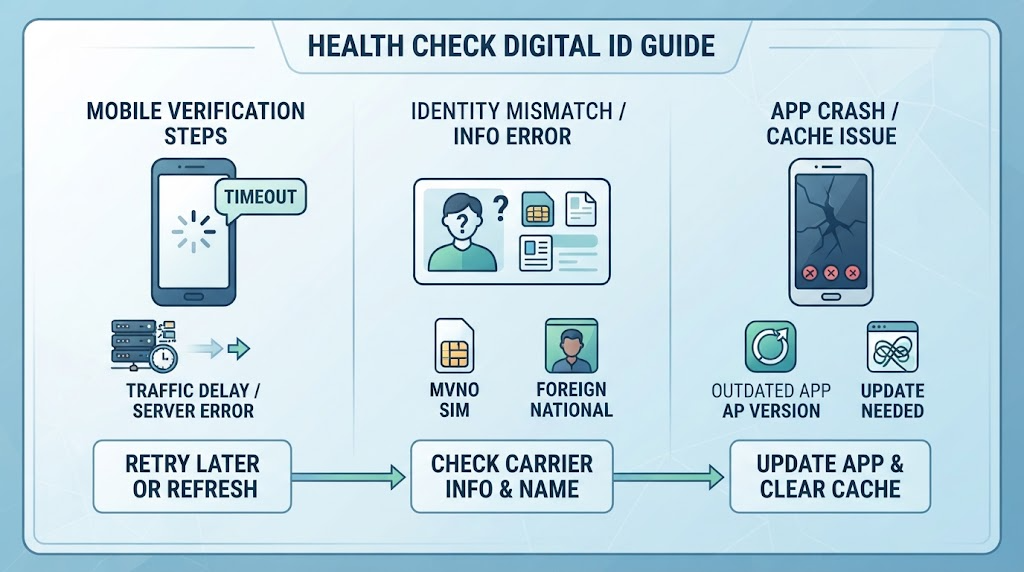
Server load due to traffic surges: Traffic spikes during concentrated year-end periods or specific times (lunch hours, leaving work, etc.), causing authentication server response delays or timeouts.
Simple authentication and carrier communication errors: Temporary communication delays occur during the integration process between private simple authentication services like Naver, Kakao, and Toss or mobile carrier (SKT, KT, LGU+) identity verification modules.
Smartphone environment and app version issues: App conflicts running in the background, network environments (switching errors between Wi-Fi and mobile data), or missing updates for ‘The Health Insurance’ app and certificate apps can also be the cause.
A health checkup is an important procedure to protect public health, but getting blocked by authentication when trying to check is extremely frustrating. In the next chapter, we will examine specific types of errors and look at step-by-step troubleshooting methods that anyone can easily follow.

4 Typical Types of Mobile Authentication Errors
When checking health checkup targets and results through the National Health Insurance mobile app (‘The Health Insurance’) or mobile web, here are 4 representative types of identity authentication errors that users experience most frequently. Check if there is an item that matches the symptoms you are experiencing.
Type 1: Delayed or missing text message (SMS) verification codes
Symptoms: Requesting a 6-digit verification code via text message for mobile identity verification, but the code does not arrive or arrives after several minutes, exceeding the input time limit.
Causes: Spam blocking service malfunctions, temporary carrier network delays, or insufficient message box storage and receipt blocking settings on the smartphone.
Type 2: Infinite loading and timeout for simple authentication (Kakao, Naver, Toss, etc.)
Symptoms: Selecting private simple authentication like Naver, Kakao, or Toss and completing approval in the corresponding app, yet the health insurance app screen stays frozen or a ‘Time-out’ message appears.
Causes: This mainly occurs when packet loss or communication delays happen due to traffic overload during the integration process between the private authentication agency providing simple authentication and the National Health Insurance Service authentication server.
Type 3: Mismatch of cardholder information and carrier authentication errors
Symptoms: An ‘Authentication Failed’ message appears because the smartphone is not under your own name, or personal information registered with the mobile carrier due to a recent number transfer or name change does not match subscriber information registered with the National Health Insurance Service.
Causes: This happens when subscription information is occasionally not reflected in real-time when using budget phones (MVNOs), or when the use of authentication methods under one’s own name is restricted for foreigners or minors.
Type 4: Missing app latest version and browser cache conflicts
Symptoms: Tapping the authentication button produces no response at all, or the authentication window turns white and crashes.
Causes: Using older versions of ‘The Health Insurance’ app installed on the smartphone or the browser (Chrome, Safari, etc.) used for simple authentication, or scripts failing to function properly due to conflicts from accumulated cookies and temporary files (cache).
How to Fix Mobile Authentication Errors by Situation and Step (Practical Guide)
If you get stuck during the mobile authentication step while checking your health checkup eligibility, don’t panic and try the following step-by-step troubleshooting methods in order. Most errors can be resolved with simple actions.
Step 1. Check your smartphone network environment
In an unstable Wi-Fi environment, disconnection issues easily occur during authentication data transmission.
Turn off Wi-Fi, switch to LTE or 5G mobile data, and try again. Conversely, if you are in a location with a weak data signal, connecting to a stable Wi-Fi network is also a method.
It is also effective to initialize the communication network by turning on ‘Airplane mode’ on your smartphone to completely cut off the network and turning it off after 5 seconds.
Step 2. Clear app cache and update to the latest version
Errors frequently occur when temporary files accumulate in ‘The Health Insurance’ app or the browser used for authentication (Chrome, Safari, etc.).
Go to smartphone settings [Applications] > [The Health Insurance] > [Storage] and proceed with ‘Clear Cache’.
Access the Google Play Store (Android) or App Store (iOS) and make sure the app is updated to the latest version.
Step 3. Re-verify your mobile phone ownership and carrier information
Check if the personal information or phone number you entered exactly matches the information registered with your mobile carrier.
Especially for budget phone (MVNO) users, authentication information may not be immediately reflected in the system right after a recent number portability or rate plan change, causing errors. In this case, you need to check whether the information is synchronized through your carrier’s customer service or authentication agency.
Step 4. Bypass with another authentication method (The most reliable method)
If a specific simple authentication (e.g., Kakao Pay) server is overloaded, there is no need to persist; try changing to another authentication method.
Choosing another simple authentication method such as Naver Certificate, Toss, Financial Certificate, or carrier PASS, or switching the method to mobile text message (SMS) identity verification often allows you to pass smoothly.

Bypassing via PC (Official Website)
If checking is impossible due to continuous mobile authentication errors or screen freezing on the smartphone app, accessing the official National Health Insurance website via PC is the most reliable workaround. Connecting with a stable network on a large screen allows you to easily complete your health checkup target inquiry without errors.
Step 1. Accessing the official National Health Insurance website
Open a PC web browser (Chrome, Edge, Whale, etc.), search for ‘National Health Insurance’ on a portal site, and access the official website.
Click on the ‘Health Checkup’ or ‘My Health Management’ menu located at the top of the main screen or in the main menu.
Step 2. Proceeding with simple authentication or joint certificate login
Logging in is mandatory to check health checkup eligibility. Click the [Login] button at the top right of the screen.
If errors were frequent on mobile, you can safely attempt login on the PC screen by utilizing a joint certificate (formerly official certificate) or financial certificate stored on your PC, in addition to simple authentication (Naver, Kakao, PASS, etc.).
Step 3. Checking the health checkup target inquiry menu
Once login is complete, navigate to the [Health i-G] or [Health Checkup Target Inquiry] menu.
You can immediately check item by item whether you are eligible for the general health checkup this year and whether you correspond to cancer screening targets (stomach cancer, colorectal cancer, breast cancer, etc.).
💡 PC usage tip (Tip)
Even in a PC environment, logins may occasionally crash due to browser cookie conflicts. In this case, closing all browser windows or re-accessing with ‘Incognito mode (InPrivate window)’ turned on will allow smooth inquiry.
Customer Center Inquiries and Frequently Asked Questions (FAQ)
- Customer center usage guide and inquiry methods
If your questions are not resolved or you need assistance, please contact us through the channels below and we will guide you promptly.
Telephone consultation (Customer Center)
Contact: 1588-XXXX
Operating hours: Weekdays 09:00 ~ 18:00 (Lunch time 12:00 ~ 13:00 / Closed on weekends and public holidays)
1:1 Online inquiry (Bulletin board)
Submission method: Use ‘1:1 Inquiry’ at the bottom of the homepage or the inquiry bulletin board within My Page
Response time: Sequential response within 24 hours on business days
Email inquiry
Submission address: help@example.com
Required details: Leaving your name, contact information, service name in use, and detailed inquiry content will enable even faster processing.
- Frequently Asked Questions (FAQ)
Q1. Membership and Account Related
Q. I forgot my ID and password. How can I find them?
A. Please click [Find ID] or [Find Password] at the bottom of the login page. You can easily check and reset them through the email registered during sign-up or mobile identity verification.
Q. How do I withdraw my membership?
A. You can proceed with [Membership Withdrawal] at the bottom of the [My Page] > [Edit Member Info] menu. Please decide carefully as any reward points and usage history you hold will be immediately deleted upon withdrawal and cannot be recovered.
Q2. Payment and Refund Related
Q. What payment methods are available?
A. We support credit cards, real-time account transfers, bank deposits (virtual accounts), and simple payments (Naver Pay, Kakao Pay, etc.).
Q. When and how are refunds processed?
A. You can apply for cancellation and refunds in [My Page] > [Order/Payment History]. For credit card payments, card company approval cancellation is completed within 3 to 5 business days, and for bank deposits, the refund amount is deposited into your name-verified account within 1 to 2 business days.
Q3. Service Usage and Delivery Related
Q. How many days does delivery usually take?
A. You can receive items within an average of 1 to 3 business days after shipment. However, some delays may occur depending on remote island areas, courier circumstances, or natural disasters.
Q. Where can I check the delivery status of ordered items?
A. You can check the current delivery status and tracking number in [My Page] > [Order History Inquiry]. You can check real-time delivery locations by clicking the courier link.
Are there any parts you need to additionally modify or change to fit a specific service or industry?

Conclusion: Get Your Health Checkup Early and Take Care of Your Health at Ease
This is the drafted concluding (Conclusion) section of a blog post emphasizing the importance of health checkups and the need for relaxed schedule management. It has been organized so you can use it immediately in line with the blog’s sentiment.
Conclusion: Get Your Health Checkup Early and Take Care of Your Health at Ease
As the end of every year approaches, we truly feel the reality of the health checkup reservation war. Due to the crowds of people rushing to make reservations, many people stamp their feet unable to get their desired dates, or end up crossing into the next year and becoming subject to fines.
However, a health checkup is not simply a homework assignment to be disposed of as an obligation, but the wisest way to listen to your body’s precious signals in advance and protect it. If you book your checkup early with a relaxed schedule avoiding the peak season, you can reduce the stress of waiting times and receive your examination with a much more thorough and comfortable mind.
💡 Today’s Core Tip
Avoid the deadline-impending period (October–December) for reservations and try targeting the first half of the year or the off-season.
Don’t forget the sense to check in advance on the National Health Insurance website or app whether you are a target this year!
How about making this year a pleasant checkup time for your body rather than a checkup taken reluctantly after putting it off and putting it off? Check your schedule right now and we hope you have a year where you leisurely take care of your health.
If there is anything else that needs writing or modification, please feel free to tell us anytime!
Korean version: 한국어로 읽기